


Image Playground
3.7111.00 Reviews
App Specs
- Version
- 1.3.8
- Updated On
- License
- Free
- Downloads
- 100,000+
- Developer
- Triapp Techs
- Categories
- Art & Design
- Platform
- Android
Screenshots
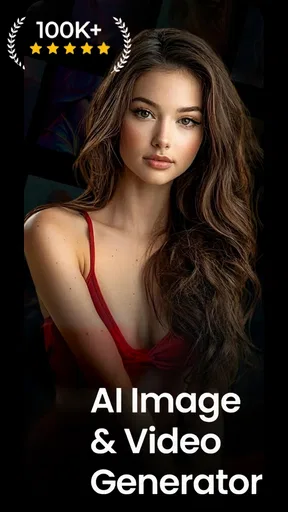
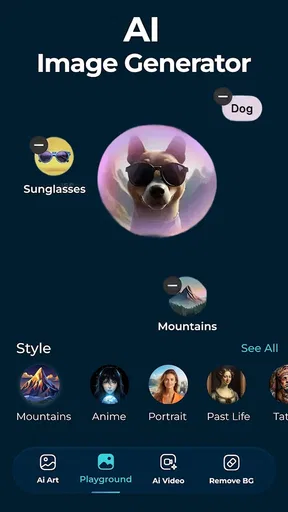
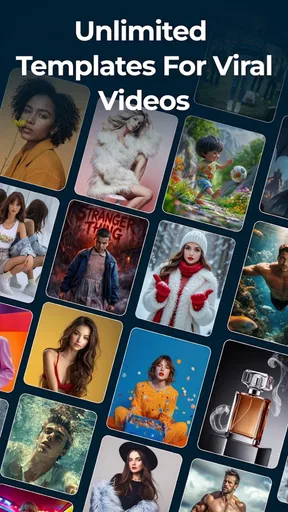
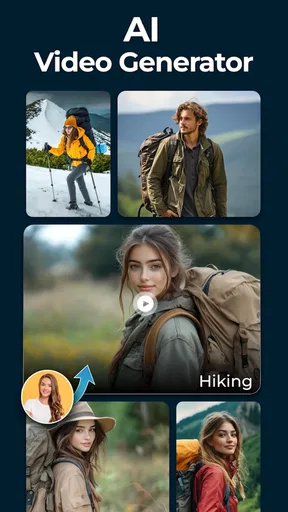
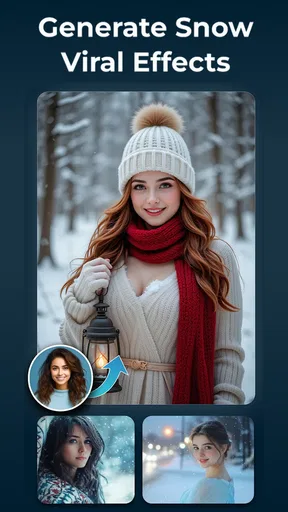
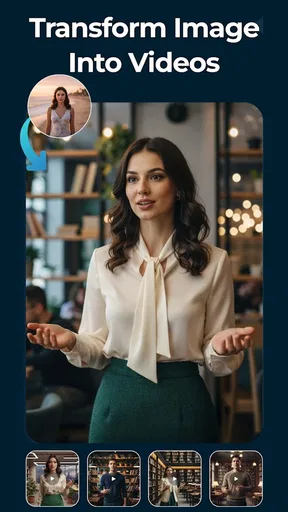
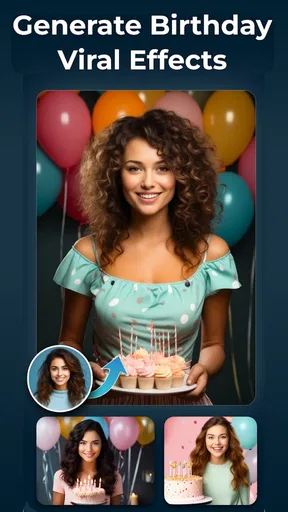
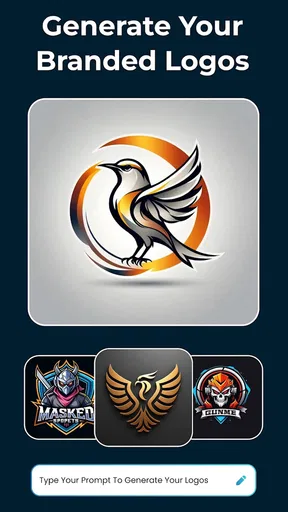
 Analysis by AppCompare
I’d start with a simple goal rather than trying to make a polished piece on the first try: create one image you can actually use, such as a birthday greeting, a playful portrait, or a visual for a group chat. That keeps the first session relaxed and makes it easier to judge whether Image Playground fits the way you like to create. It is a free art-and-design app from Triapp Techs, with optional in-app purchases, so you can explore without paying upfront while keeping an eye on any paid choices as you go.
What to expect from your first session
The app’s name suggests open-ended experimentation, and that is the most useful mindset to bring to it. Treat the tools as a way to try visual directions, not as a promise that every result will look professionally finished. I’d expect the most satisfying use to be quick, personal projects where a distinctive look matters more than exact control over every detail.
It may suit someone who wants to make something amusing or expressive without learning a full desktop design program. If you need precise brand layouts, careful photo retouching, or a repeatable production workflow, a dedicated editor is likely the better choice. The value here is in getting started easily and seeing what a small creative session can produce.
Set up with a clear, low-pressure plan
Before opening the editor, decide what you want the finished image to do. A visual for a friend can be informal; a small poster needs readable text; a profile image should remain clear when viewed at a small size. That simple decision helps you avoid piling effects onto a picture just because they are available.
Image Playground is free to install, is rated for Everyone, and requires Android 7.0 or later. It was released on May 30, 2025, and its current version is 1.3.8. The app has a 3.7 average from around 550 ratings and over 100,000 installs, which gives a prospective user some context without telling the whole story of how it will feel on their own phone. Optional purchases range from $5.99 to $79.99 per item, so I’d take a moment to distinguish the freely accessible parts from any paid options before committing to a purchase.
Make the first result useful
For a first attempt, I’d choose one photo and make just two deliberate changes: adjust its framing, then try a single visual treatment. Look at the result at normal phone size before adding anything else. If the image already communicates the mood you want, stop there; extra effects can make a simple design harder to read.
For a greeting image, for example, start with a photo that has some open space where a short message could sit. Keep the wording brief and check that it remains legible against the background. If the text competes with the subject, move toward a simpler treatment rather than trying to rescue the layout with more decoration. This is a practical way to get something shareable while learning how the controls affect the final composition.
Worth Reading Before You Choose

EA SPORTS FC Mobile 26 Is a Bigger Football Game, but It Takes Time

Flipboard Shows What News Apps Must Do Beyond the Feed

Switching to Android Auto Means Rethinking Your Driving Routine

Google Calendar Makes a Crowded Week Easier to Manage

Ludo King Makes the Most of the Minutes Between Plans

Baby Panda World Brings Quick Play to Modern Phones, but Its Game Library Feels Busy
Know where experimentation can get frustrating
Creative apps often make it tempting to keep adjusting after the image is already working. I’d save a version you like before exploring further, especially if you are making something for a specific occasion. That gives you a sensible fallback instead of turning a good draft into a long session of undoing changes.
Another useful habit is to test text and image effects separately. When both change at once, it can be hard to tell which choice made the design feel crowded. A quick comparison between a clean version and a more playful one helps you decide whether an effect improves the message or is only entertaining on its own.
Who will get the most from it
I can see this app working well for casual creators, families making personal images, and anyone who likes turning an ordinary photo into something with more character. It is also a reasonable place to begin if you are curious about digital art but do not want your first step to involve a complicated editing suite.
I would steer away if your main need is exact control over layers, precise masking, consistent commercial assets, or a dependable professional workflow. In those cases, a more specialized design or photo-editing app will usually offer clearer control. For social posts and one-off personal projects, though, a lighter creative tool can be less intimidating and quicker to explore.
When comparing it with a standard photo editor, think about the task rather than the number of tools. A conventional editor is often the stronger choice for correcting a photo while keeping it natural. An art-focused app makes more sense when the goal is to change the image’s character. If you are choosing between the two, start with the version of the image you need at the end: accurate and restrained, or expressive and transformed.
A realistic everyday use is making a quick visual for a friend’s birthday. I’d pick a photo connected to the person, try a creative treatment that still leaves the subject recognizable, and add a short greeting only if it stays easy to read. Before sharing, I’d check the image at the size it will appear on a phone. That final glance catches cramped text and distracting details more reliably than judging the design while zoomed in.
Getting Started with Image Playground
So, the first thing you notice when you open Image Playground is its super clean and intuitive interface. You know how some apps can be overwhelming with all those buttons and options? Well, this isn’t one of them. It’s sleek, straightforward, and lets you dive right into the fun part without any hassle.
Once inside, you’re greeted with a variety of tools. From filters to frames, and even some nifty editing tricks, it’s all there. The developers clearly put a lot of thought into making the app user-friendly, even for those who might not be tech-savvy.
Exploring the Features
Alright, let’s talk features. You’ve got your basic stuff like cropping and rotating, but the real magic lies in the advanced tools. There's a whole array of filters that can transform your photos from "meh" to "wow" in just a few taps. I mean, who doesn’t love a good filter?
But it doesn’t stop there. You can also add text to your images, which is perfect for creating memes or just adding a personal touch to your photos. The app even allows you to adjust the text’s font, size, and color, giving you complete control over how your final image looks.
Now, for all you perfectionists out there, the adjustment tools are a Godsend. Want to tweak the brightness, contrast, or saturation? No problem! The sliders are super responsive, making it easy to get that perfect look.
Unleashing Your Creativity
One of my favorite parts about Image Playground is the creative freedom it gives you. The app includes a unique feature called ‘Artistic Effects’ which allows you to turn your photos into paintings. Yes, you read that right! It’s like having a mini Van Gogh right in your phone. I had way too much fun turning my cat photos into pieces of art.
Another cool addition is the collage maker. You can easily combine multiple images into a single frame. There are several templates to choose from, and the drag-and-drop feature makes it a breeze to create something stunning. Perfect for your next Instagram post!
Sharing is Caring
Once you’ve created your masterpiece, sharing it with the world is just a tap away. The app integrates seamlessly with social media platforms, allowing you to post your images directly to Instagram, Facebook, and more. Plus, you can save your creations in high resolution, which is a bonus for anyone looking to print their photos.
And get this—the app even has a community section where you can share your work with other users and get inspired by what they’ve created. It’s a great way to connect with fellow creatives and maybe pick up a few new tricks along the way.
Final Thoughts
All in all, Image Playground is a fantastic app for anyone looking to spice up their photos. The range of tools and ease of use make it a must-have for both beginners and seasoned photographers. It's an app that truly lives up to its name, offering a playground where your creativity can run wild.
So, if you’re looking to add a bit of flair to your images or just have some fun playing around with different effects, give Image Playground a try. Who knows, you might just discover your inner Picasso!
A sensible way to keep exploring
Once you have one image you like, use it as a reference for your next attempt rather than starting from scratch with a completely different idea. Change one thing at a time—perhaps the crop, then the effect, then the text—and compare the results. This makes it easier to learn which choices are doing useful work and which are merely adding visual noise.
For collages, I’d begin by choosing photos that share a clear connection, such as the same outing or person. A collage with a simple theme usually feels more intentional than one built from unrelated pictures. If the template draws attention away from the photos, choose fewer images or a calmer arrangement; the point is to help the pictures tell a small story, not to fill every available space.
When you make a meme or add a caption, check the image without relying on color alone to separate the words from the background. A busy photo can make otherwise good text difficult to read. Moving the wording to a quieter part of the image or shortening it is often more effective than adding another decorative element.
Sharing, saving, and deciding what to keep
Before sending a finished image to someone else, I’d look at it once in the context where it will be seen. A design that looks balanced while editing may feel cramped as a small social post or in a chat preview. If you are making something to print, inspect the saved result at a comfortable viewing size first and keep a clean original photo separately when it matters to you.
The app’s sharing tools can make posting convenient, but direct sharing is not always the best final step. If you want to compare versions, keep a copy of the one you prefer before publishing. That small pause is useful when you have tried several filters or made multiple edits and are no longer sure which version reads best.
The community area may be appealing if seeing other people’s creations helps you get ideas. I’d use it as inspiration rather than as a template to copy: notice how a creator handles contrast, subject placement, or a short caption, then apply that one lesson to your own image. That turns browsing into a practical exercise instead of a long detour from making something.
What I would weigh before installing
The main trade-off is that a broad set of creative tools can make an app fun to explore but does not automatically make it the best choice for every image task. If your priority is a faithful photo correction, use a conventional editor and keep the changes restrained. If you want an illustrated look, a collage, or a playful image with text, this app’s mix of editing and creative effects is more relevant.
I’d also keep the optional purchase range in mind if you are trying to stay within a strict budget. The app is free to install, but some purchases can be substantial, so I would not assume every tool or option is included at no cost. A cautious first session—trying the parts available without paying, then deciding whether you genuinely need more—makes the choice clearer.
For a first-time user, the best measure of success is not whether the result looks like a professional poster. It is whether you can make an image that suits its purpose, understand which edits helped, and feel comfortable repeating the process. On that measure, Image Playground is an approachable option for casual visual projects, with enough creative range to invite experimentation and enough limits to make a specialist editor the wiser pick for demanding work.
Pros
- User-friendly interface for easy navigation.
- Wide variety of editing tools available.
- High-quality output for images.
- Frequent updates with new features.
- Minimal ads for a smooth experience.
Cons
- Some features require in-app purchases.
- Occasional app crashes on older devices.
- Limited social media sharing options.
- Requires internet for most features.
- High battery consumption during use.
FAQs for Image Playground
What is Image Playground, and what can I do with it?
Image Playground is a versatile photo editing app available for both Android and iOS. It offers a wide range of tools for enhancing and transforming your images, including filters, stickers, text overlays, and more. Users can create stunning visuals with ease, whether for personal use or social media sharing.
Is Image Playground free to use, or does it have in-app purchases?
Image Playground is free to download and offers a variety of essential editing tools at no cost. However, it includes optional in-app purchases for premium features, such as advanced filters and exclusive content packs. Users can choose to upgrade for an enhanced editing experience.
Does Image Playground require an internet connection to function?
While Image Playground does not require a constant internet connection for basic editing, some features like downloading new filters or accessing cloud storage do need internet access. Offline editing is fully supported, allowing you to work on images without connectivity.
Is Image Playground user-friendly for beginners?
Yes, Image Playground is designed with an intuitive interface that makes it accessible for beginners. The app includes tutorials and tips to help new users navigate its features easily. Even those with no prior editing experience can create professional-looking images with minimal effort.
What types of devices are compatible with Image Playground?
Image Playground is compatible with a wide range of Android and iOS devices. It is optimized to run smoothly on smartphones and tablets, ensuring a seamless editing experience. Users should ensure their device meets the minimum system requirements for optimal performance.


